

FAQ Start.info
With the Start.info app, you have all the information you need about local public transport in Mannheim, Ludwigshafen and Heidelberg in one place: our pocket-sized departure indicator provides you with departure times and transport information for all rnv lines and stops as well as VRN-wide connection information conveniently and clearly directly on your smartphone.
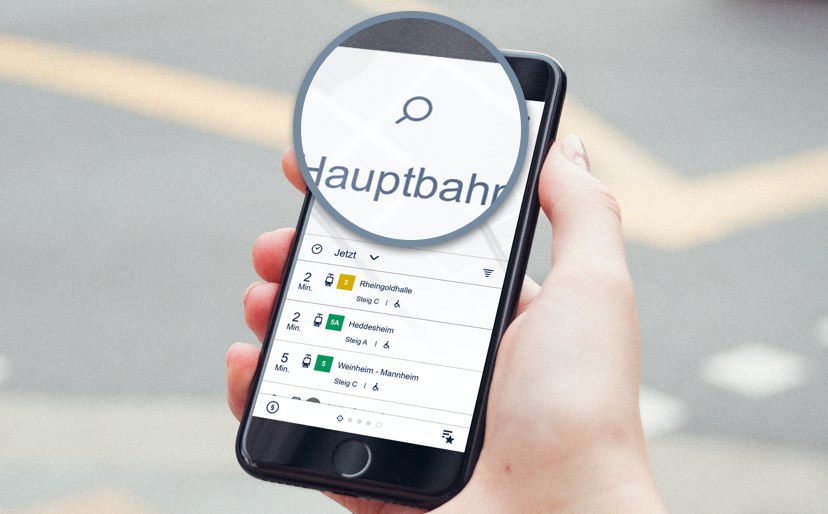
Stops can be searched for using the magnifying glass symbol (top centre). Enter the name of your desired stop in the text field. If you enter the number of a bus or tram line, the stops served by this line will be displayed. For quick access, the last stops you searched for are always displayed in the search mask.
If you click on "Now", you can select other departure times.
You can use the filter symbol to select your desired tram or bus lines so that the next ten departure times of these lines are displayed.
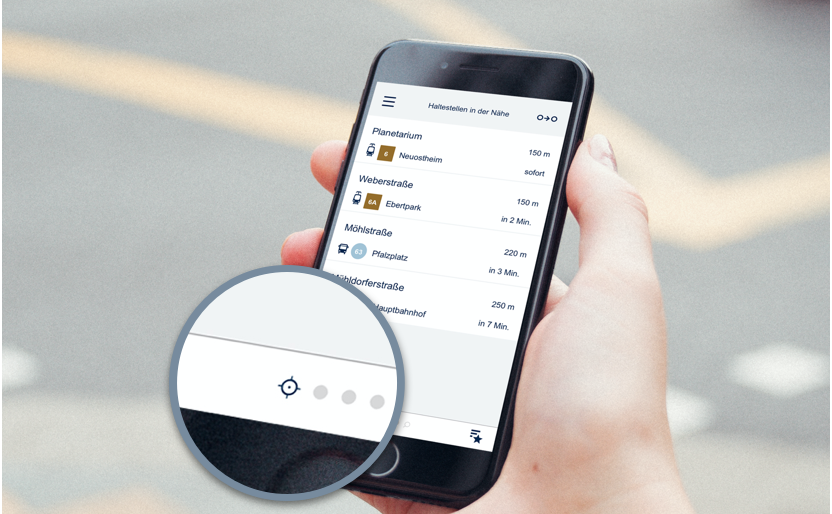
Swiping from left to right will take you to the stops in your neighbourhood. Alternatively, you can also select "In der Nähe" (Nearby) via the menu (three dashes at the top left). Or click on the crosshair symbol (bottom centre). Please note: The location service for the Start.info app must be activated for this function.
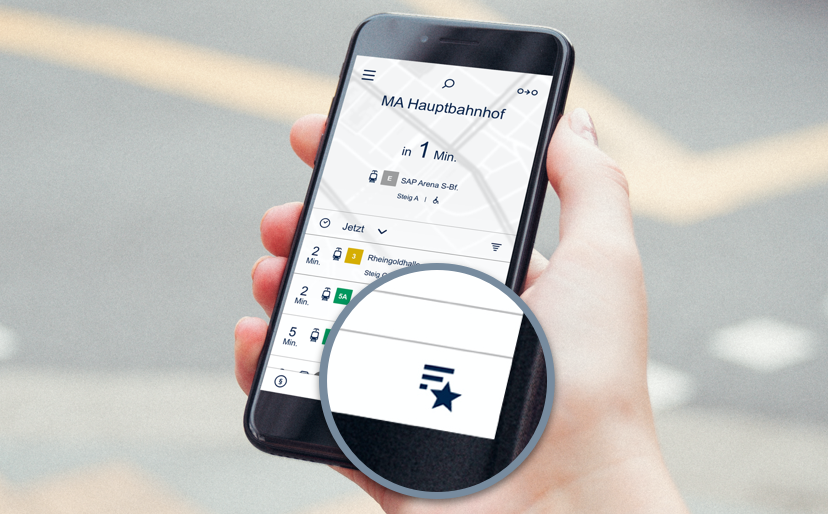
When you open the Start.info app, the departure monitor of the stop that is saved as your first favourite appears first. You can access your favourites by clicking on the star symbol at the bottom right. Alternatively, they can be called up via the menu (three dashes top left). By default, the three neuralgic points Paradeplatz (MA), Bismarckplatz (HD) and Berliner Platz (LU) are preset as favourites. You can edit these, delete them or add new favourites.
When you open the app, your favourites and their next departures are always displayed. If you swipe from right to left, you can scroll through your favourites.
To delete a favourite stop, you must be in the favourites list. If you swipe from right to left, you can edit or remove individual favourites.
To add new favourite stops, you must be in the favourites list. You can add new favourites by clicking on the plus symbol at the bottom right.
In the favourites list, you can move your saved favourite stops to the desired location by pressing and holding. The departure monitor of the favourite at the top of the list is displayed after opening the app. You can scroll through the departure monitors of your favourites according to the order of the favourites list (see "Where can I find the departure times of my favourites?")
If you swipe from right to left on a journey in the departure monitor, you have the option of setting a reminder for this journey (bell symbol).
Selecting a journey in the departure monitor opens the journey history of the desired line. Here you can see which stops the selected line serves next. If you swipe from right to left at a stop in the journey history, you can display the departure monitor for this stop (monitor symbol). Or you can switch to the connection information (connection symbol). You can also be reminded of the departure from the stop (bell symbol).
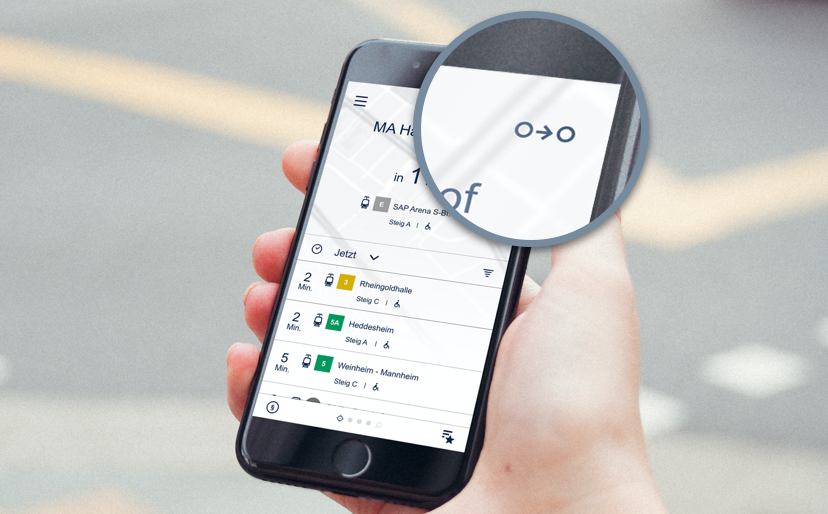
The connection symbol is located at the top right of each departure monitor. Here you can use the stop of the departure monitor as the starting point for a journey planner and only need to add your destination. Alternatively, you can also select the "Verbindungsauskunft" (connection information) item via the menu (three dashes at the top left). In the journey planner, you have the option of searching for stops by entering text or selecting them from your favourites.
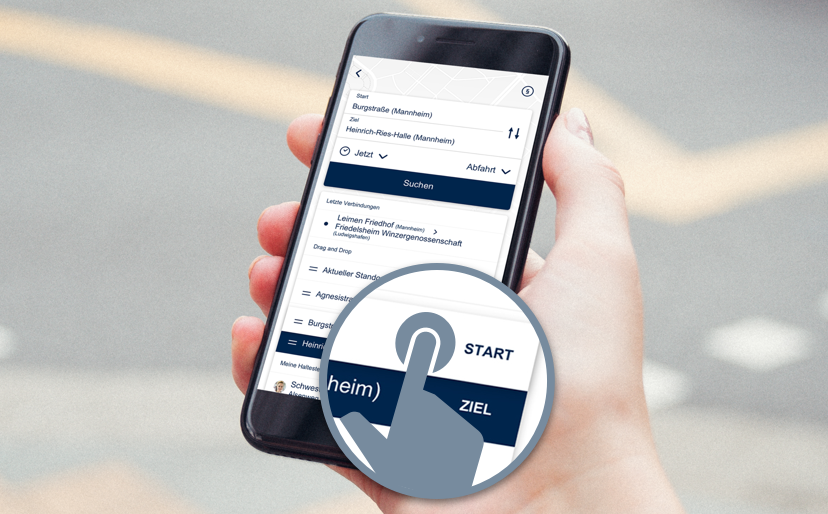
You can simply drag and drop the start stop onto the desired destination stop in your Favourites list to obtain connection information.
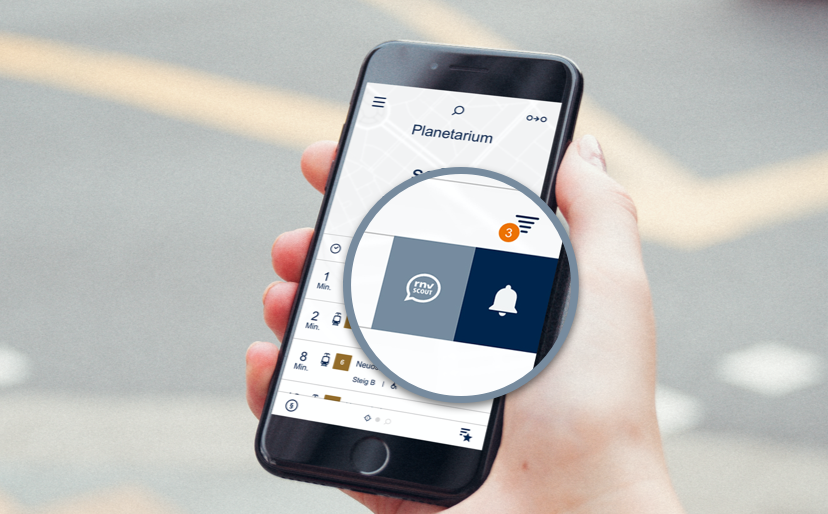
With the "rnv-Scout" you can report defects, faults, delays or soiling that you notice in our vehicles or at our stops directly to us. You will be guided through a question and answer menu. Once the problem has been described and, if necessary, a photo has been added, a new e-mail will automatically open with the information you have entered, which you only need to send.
If you wish to report incidents that are relevant to safety or criminal law, please use the relevant emergency calls or report them directly to rnv staff.
You can access the "rnv-Scout" function via the menu (three dashes at the top left), in the departure monitor by holding down the stop name at the top or in the journey list by swiping from left to right.
rnv Start.Info accesses the data from our control centre computer via the mobile phone network. If available, actual times (actual expected departure times) are displayed for the stop information. If these are not available, the current target times (timetable data) are displayed.
If you have technical problems or questions about using the Start.info app, please send an email to startinfo@rnv-online.de. Ideally, you should tell us which device you are using to access the app, which operating system you are using and which version of the app you are using. This information will help us to better understand your problem and solve it accordingly.
Please check whether online access has been denied in the application and whether your Internet settings allow online access. Another cause may be a technical fault in the system. In this case, please send us a short message to the e-mail address startinfo@rnv-online.de.
Your Android smartphone may not have enough storage space. In this case, follow the dialogue displayed and restart rnv Start.Info. If adding photos still does not work, restarting your smartphone could solve the problem.
If you have any questions or technical problems, please do not hesitate to contact us at startinfo@rnv-online.de.